
Building the Office to PDF conversion that preview and search share
Word, Excel, and email are copied to a throwaway name on one SharePoint site, turned into a PDF by Office, and deleted there. Preview streams the PDF that was stored.
This article is the technical pair for When the AI answer doesn’t match the file on screen. The business pair makes the case for one shared PDF and an original download; this one is about the technical implementation.
It also builds on Giving your documents a proper home, Zero secrets in code: managed identity for service-to-service auth, and The architecture of AI-native document management software.
A second export splits the file the AI already read
Ask for a unit price and the AI answer can name the right spreadsheet while preview shows a different number, when the viewer converts the workbook on open and search has already read a PDF from another engine. Office to PDF is the single export that stops that split. It runs through Microsoft Graph, on a SharePoint site used only as a workbench, and the PDF that comes back is what gets stored. Preview streams that stored file and doesn’t ask Office to export again.
Where Office to PDF sits
When the AI answer doesn’t match the file on screen is the case for one shared PDF, with download left as the original. Giving your documents a proper home is where that PDF lives, in the canonical container next to the original. Zero secrets in code: managed identity for service-to-service auth is the app’s sign-in, including Graph’s permission on one site. The upload pipeline decides when a new file or a replacement may become the current bytes. This article is the conversion those paths call, and the preview route that only reads the result. The architecture overview names the copy and stops there.
Where a shared filename still hides two exports
The common trap is a product that stores one file and then lets every feature open it with its own renderer. Preview draws the Word file in the browser, the indexing pipeline extracts text with another tool, and the AI answer is written from whatever search got back, so the filename can match while the pages don’t.
The second trap keeps the contract on the conversion site under its real name. SharePoint then holds a second copy under the customer’s filename, including after a crash. The workbench file has to be a throwaway name, and the delete has to run when the call finishes and when a crash leaves the file behind.
The third trap follows Graph’s redirect with the same bearer token that was allowed to write to the site. The PDF URL Graph returns is already authorized for that one file. Sending the Graph token with it hands a site-wide credential to a host that only needed to serve bytes.
The fourth trap is a developer laptop signed in with Azure CLI. CLI can’t carry Graph’s Sites.Selected permission, so a local conversion that depends on the CLI fails even when the hosted app can convert the same file.
The fifth trap hands CSV, plain text, or a saved email straight to Graph and trusts the importer. Graph doesn’t turn plain text or CSV into a stable PDF on its own, and Word’s mail importer corrupts quoted-printable soft line breaks, so the pages that would reach search aren’t the message someone received. Those formats are turned into an Office file locally before Graph sees them.
The sixth trap accepts a Word upload when the converter isn’t configured. The name shows up in the list, and preview and the AI answer have no pages to read.
One pipeline, then two readers
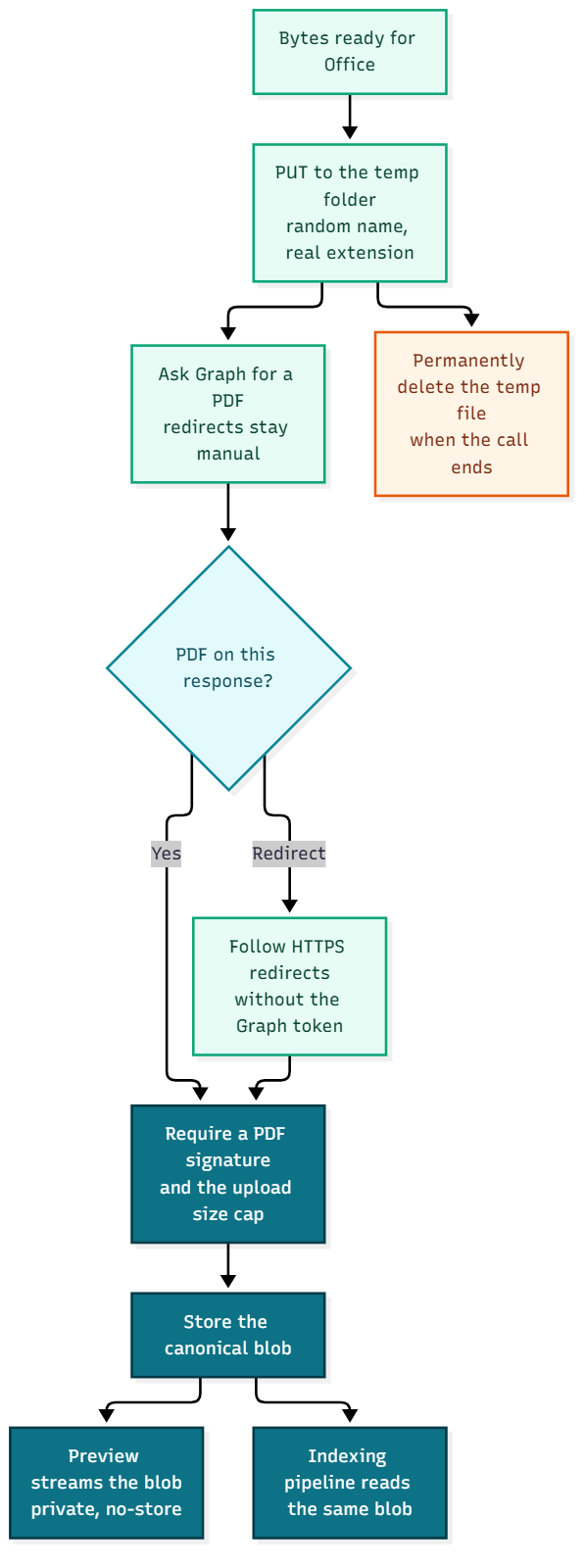
The stored pages are the canonical PDF in the document home, which is the shared PDF the business pair argues for. Producing it is a short sequence. Prepare the bytes when the format needs it, upload them to the workbench, ask Graph for a PDF, keep the body only when it really is a PDF, store it under a new blob name for that conversion, and delete the workbench file. Preview and the indexing pipeline both read that stored blob, and neither calls Graph.
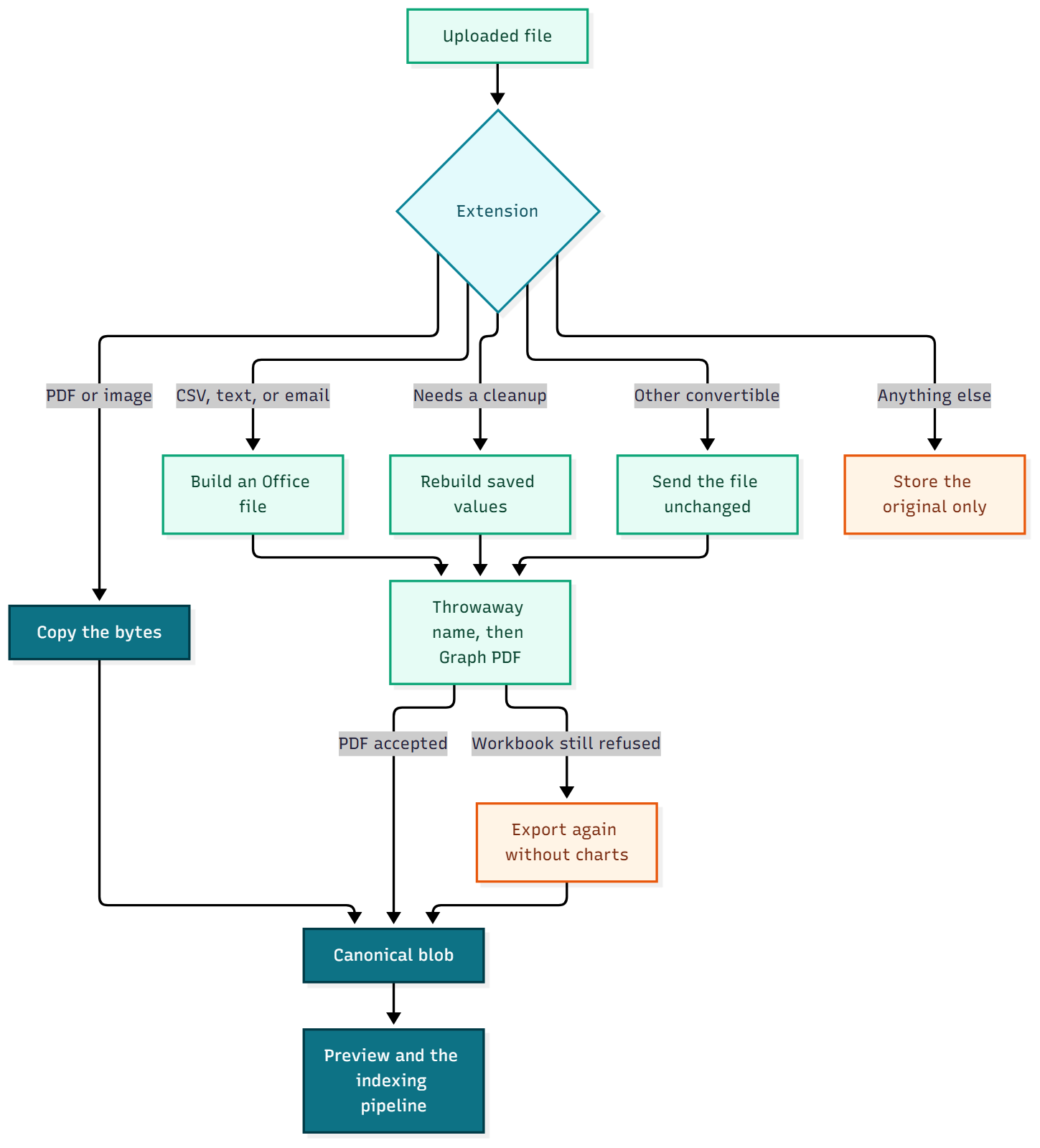
Three outcomes follow from the extension.
Already a page. A PDF or an image is copied into the canonical container without Office. Download returns that same file.
Office, text, and email. Word, Excel, PowerPoint, the older Office formats, OpenDocument, rich text, CSV, plain text, Markdown, HTML, a standard saved email, and an Outlook message file. People still download the original. The canonical blob for these is a new .pdf for that conversion job, so a later replacement doesn’t write over the previous PDF in place. The upload pipeline points the original at the new PDF only after the export succeeds.
Stored, and unread. Anything outside that set can still sit in the document home. It gets no canonical file. Preview is refused. Search never picks it up. Download is how someone still gets the bytes.
What has to be true before Graph runs
If the worker is hosted, use the app identity
On the hosted app the conversion asks DefaultAzureCredential for a Graph token with the https://graph.microsoft.com/.default scope. The app’s identity holds Sites.Selected as an application permission, and the conversion site grants that identity write on that site alone, with no certificate. Zero secrets in code: managed identity for service-to-service auth is the rest of that sign-in, and the token this conversion receives can see one SharePoint site.
A laptop can’t use that identity, and Azure CLI can’t carry Sites.Selected. The first conversion in a local process signs in once with a device code through the public client pialgorithms-local-converter, which has write on that same site, and asks for the scope https://graph.microsoft.com/Sites.Selected. Later conversions in that process reuse the sign-in. Nothing from it is written to disk, and a hosted Function App never takes this path.
if hosted:
    credential = DefaultAzureCredential()
    scope = "https://graph.microsoft.com/.default"
else:
    credential = DeviceCodeCredential(tenant_id=tenant_id, client_id=client_id)
    scope = "https://graph.microsoft.com/Sites.Selected"
token = credential.get_token(scope).token
With a token, the worker looks up the site by hostname and path, then that site’s default document library, and caches both for the life of the process. The temp folder is created on that library if it isn’t already there. When the hostname and path aren’t set, the converter counts as off. An upload that needs a PDF is then refused with 503, before the bytes are stored, for a new file and for a replacement, so the library stays as it was. A missing grant or a Graph outage is a different case, where the original can already be in the library and that one file fails preparation.
If the file is already a page, skip the workbench
PDF and image bytes are returned unchanged, with no SharePoint upload and no Graph export. The canonical container still receives a copy, because preview and the indexing pipeline read that container, and an image keeps its own extension so preview can send an image content type.
If Graph would misread the format, build an Office file locally
CSV becomes a workbook before the upload. The sheet prints landscape at full size. Fit-to-page stays off, so a wide file keeps readable type and extra columns continue on later pages. Plain text becomes a simple Word document, decoded as UTF-8 and falling back to Latin-1 when the bytes aren’t UTF-8.
A standard saved email is decoded locally and written as a Word file, because handing .eml to Word breaks quoted-printable soft line breaks. The Word file carries From, Sent, To, Cc, Bcc, Reply-To, and Subject when those headers are present, then the HTML body when the message has one, otherwise the plain text. Attachment names are written in. The attached files aren’t opened. Pictures already stored in the message are embedded, up to 40 pictures and 25 MB of image bytes. Pictures linked from the internet aren’t fetched. If that Word file would exceed the upload cap, the text is converted again without the pictures. An Outlook message file is uploaded as itself.
If the workbook will make Office refuse the export, rebuild a conversion copy
A normal .xlsx from Excel goes to Graph as uploaded. A workbook from LibreOffice or Google Sheets, a chart whose series title is a quoted formula, or a sheet whose declared range covers a huge empty area, more than fifty thousand cells or far more declared rows than rows that exist, is rebuilt in memory first. The original bytes stay the download. The conversion copy writes saved formula results in as plain values, because Excel Online doesn’t recalculate while it exports a PDF. A formula cell with no saved result is left blank on that copy. If those saved results can’t be read at all, or the declared range is too large to parse safely, conversion stops, and no number is filled in. Each rebuilt sheet is fit to one page. Charts are copied when they can be, after a quoted series title is turned into plain text.
If Graph still refuses that file as a format problem, the workbook is uploaded again without charts. Older .xls files skip this rebuild and go to Graph as they are. Search reads its row groups from the workbook handed to the conversion, which is that cleaned copy when a cleanup ran, so a price in the AI answer and a price on the preview page come from one workbook. Dropping charts changes the pictures in the PDF and leaves the cell values as they were, so the chart can be missing on preview and still be in the file someone downloads.
Upload under a throwaway name, export, then delete
The workbench name is a random id plus the real extension, and only when that extension is a short alphanumeric token. The original filename never leaves the document home. The upload is one PUT to a stable path, so a retry hits the same temp file. Graph is then asked for the PDF with content?format=pdf. Graph sometimes returns the PDF on that response and sometimes answers with a redirect to a preauthenticated URL. Redirects aren’t followed automatically. Each Location has to be HTTPS, the Graph token stays off that next request, and three redirects is the limit. The body has to start with %PDF-, it can’t be empty, and it can’t exceed the same byte cap as an upload, 100 MiB unless that cap is configured higher, and never above 250 MiB. An input over the cap is rejected before it reaches SharePoint.
headers = {"Authorization": f"Bearer {token}", "Accept": "application/pdf"}
response = requests.get(convert_url, headers=headers, allow_redirects=False, stream=True)
if response.status_code in (301, 302, 303, 307, 308):
    response = requests.get(
        response.headers["Location"],
        headers={"Accept": "application/pdf"},
        allow_redirects=False,
        stream=True,
    )
pdf = b"".join(response.iter_content(64 * 1024))
accepted = pdf.startswith(b"%PDF-") and 0 < len(pdf) <= max_bytes
Throttling and server errors, a 429 or a 5xx, are retried up to four times, while a format refusal on a workbook starts the chart-strip export above. When the call ends, success or failure, the temp item is removed with permanentDelete, which bypasses the recycle bin. A timer every ten minutes deletes leftovers in that folder that are older than fifteen minutes. That sweep covers a crash between the upload and the delete, and a conversion that finishes in seconds is left alone.
The upload pipeline can wait for this PDF, or queue the same job and return while the name is already in the list. A new file can be downloaded during that wait, because the original is already stored. Preview says the file is still being prepared until the PDF is stored. That wait is a file in the document home isn’t always ready to work with. If this file fails, the original can still be downloaded, preview says preparation failed, and no PDF is stored for search to read. A replacement keeps its new bytes off to the side. Preview and download keep serving the version already in the library until the new PDF is saved as current. If the new export fails, that previous version stays.
Preview only streams what was stored
Preview checks the extension, then the canonical status recorded on the original. Still preparing returns 409, with a two-second retry hint. Failed preparation returns 422. A missing canonical file returns 404. A type outside the set above returns 415. A ready file is read from the canonical container with the app’s storage identity, the same identity download uses on the original blob, and the response is inline. The content type comes from the canonical blob, so a PDF is application/pdf and a photo stays an image. The filename on that response is the original name, which is why the viewer can say rate-card.xlsx while the bytes are the shared PDF. Cache-Control: private, no-store tells the browser not to keep the stream, so a cached tab can’t sit beside the canonical file as a second copy. X-Content-Type-Options: nosniff stops the browser from guessing a type.
Once that canonical blob is the current generation, the indexing pipeline reads it. A later highlight on the source points at this same PDF.
What that PDF still won’t match
Office’s own export can break a page in a different place than the Word window on a desktop. A chart left out so the rest of the workbook would convert is still in the download. Preview, search, and the AI answer agree with each other because they share this PDF. Someone who needs the chart, or the workbook a supplier expects, downloads the original and works from that.
Every Office, text, and email file pays for one Graph export. Reusing the stored PDF is what keeps preview, search, and the AI answer off a second export that would be free to disagree. The workbench holds client file bytes for the length of that export, on one site, under a name that isn’t the customer’s filename, and the document home remains the place the file lives.
Conclusion
Preview, search, and the AI answer stay on the same pages when Office to PDF runs once and the stored PDF is what they read. The workbench is a throwaway file on one SharePoint site, and it’s deleted when the export finishes. Preview streams the stored PDF and doesn’t export again. Download stays the original, because people still edit the contract in Word and still send the workbook. A file that never became pages was stored, and it wasn’t read.
Ideas, opinions, and tone are mine. AI helped with the language.
For more articles on AI-native document management visit the pialgorithms blog.
pialgorithms | document management software | ai engineering services