
Where should your documents live?
From scattered storage venues to a single document home
Before AI, a simpler question
Before AI, search, or automation can do anything useful on your documents, those documents still need somewhere to live, and most organizations have never decided where documents live in a structured, company wide way.
The reason is structural, not careless. Nobody sits down on day one and decides ”this is where our documents live”. Instead, each team solves its own problem as it arises, and documents end up stored somewhere in an organic way depending on how each team works. Legal adopts a shared drive. Operations lives in email. Accounting glues everything to the ERP. Engineering uses a wiki. At the beginning this looks fine, because teams mostly work inside their own bubbles and each bubble feels organized from the inside. Then the company grows. Teams start depending on each other more. The contract that Legal keeps on a drive is suddenly needed by Accounting (who checks the ERP), and by Operations (who checks emails). Everyone finds a different version, or in worst case scenarios no version at all. This is the kind of problem that doesn’t explode, but accumulates. And then one day you realize you have been stepping around it for years.
It is worth clarifying at this stage that this is not an argument that these storage venues are useless or that they should disappear. Each one exists because it solved a real operational need, and many of them will continue to serve that need. The problem is not that they exist. The problem is that, in most organizations, they have quietly become the document landscape rather than parts of a broader, deliberate document strategy. The result is that time and effort that should be spent on critical thinking, judgment, and decision-making are instead spent on document grind.
In what follows, I will try to explain the most typical document storage venues seen in organizations, their pros and cons, and what a more complete document home looks like when it captures the benefits of those venues while treating documents as part of a workflow rather than as static files.
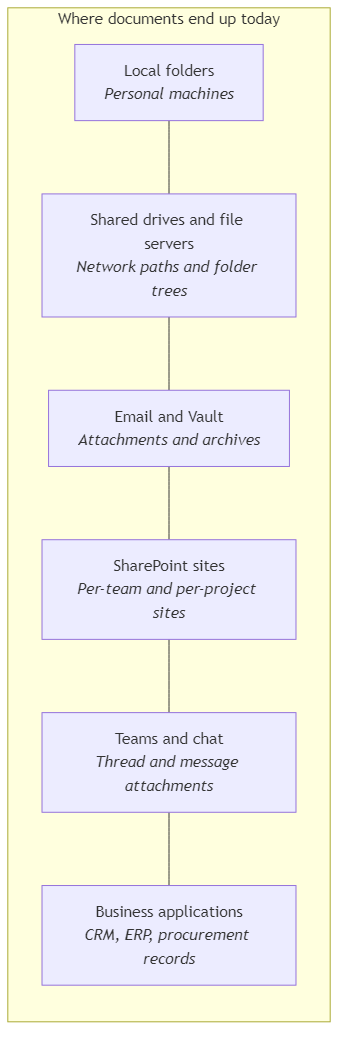
Where documents actually end up today
Let’s walk through the venues that accumulated over time. For each one, what it bought you, and what it costs you. The costs carry more weight than most people want to admit, but over time they get under the skin, slowly and painfully.
Local folders on personal machines
Someone opened a Word document. They clicked save. Now it is somewhere under C:\\Users\\them\\Desktop, or in Downloads, or in an almost-randomly named folder that they promise themselves they will tidy up soon.
Pros
This gives the individual user the lowest-friction editing experience, with no dependency on network speed or another platform being available. It feels convenient precisely because it is immediate and largely under the user’s control.
It also keeps working when other systems do not. VPN down, a SaaS provider having one of its days, the corporate intranet stuttering: a file sitting on the local disk is far less exposed to those problems.
Cons
It is invisible to everyone else, unsearchable by anyone else, and often not backed up properly. If the laptop dies or the employee leaves without proper handover, the document is either gone or unreachable, and the rest of the team has no way of even knowing what was lost.
You send it one time to one colleague, and then to another, and each adds their own personal touch to it. After a few days you have slightly different documents that everyone refers to, different just enough to create (hopefully minor) miscommunication and frustration. There is no master copy, because nobody is the owner of one.
Network shared drives and file servers
The veterans. \\londonserver01\finance\invoices\2026; still standing, still used, still the place where teams “put things”.
Pros
They provide shared access, so documents are available to teams rather than locked away on one person’s machine.
They also follow a familiar folder structure, which makes them easy to navigate and gives teams a sense of order because everyone roughly knows where things are supposed to go, even if in practice, things are less organized than they seem.
They offer predictable folder-level permissions, giving organizations a simple way to control who can access what.
Cons
The folder tree does not reflect how work actually flows. You end up with the same document in three folders, all slightly different, and nobody is willing to be the person who deletes the wrong one. Search is a joke. Duplication is rampant. Cleanup is a permanent backlog that haunts you.
In organizations with offices across continents and outdated on-prem infra, there will be a time when you will need to work on a document that is in a folder that lives on a server in a different office location. If that server sits in London and you are opening a large deck from the North Americas office, you are not in for a productive morning. Every save is a round trip across the Atlantic. Every accidental ”open as read-only, now I want to edit” reloads the whole file. People quietly learn the workaround: download a local copy, edit, upload later, and hope nobody else touched the server copy in between. You can watch the next version-conflict incident forming in real time. For any workflow that requires constant updates to the same documents, this is a no-go.
Many of these file servers were sized for the organization as it was a decade ago. Perhaps good decisions at the time, but unfortunately there wasn’t a clear scaling plan back then, hence their updates were being postponed for many years, or the organization was slow to adopt new technologies. But the longer they run past their comfortable capacity, the more the day-to-day symptoms appear: folders take too long to open, backups start overrunning, remote users struggle with unstable access, and a growing list of “just don’t open that folder on a Monday morning” tribal knowledge begins to form.
Email attachments and the Vault
Unfortunately, in many organizations (and even large ones), this is the true system of record. If you genuinely need a document, odds are it is attached to some old email thread somewhere, living alongside an Enterprise Vault archive that takes an eternity to render a preview. A classic we have all come to peacefully accept.
Pros
Documents land where the conversation and the decision actually happened. That context is genuinely useful, because the attachment sits next to the discussion, approvals, and rationale that gave it meaning in the first place.
Cons
Version control is handled through “reply all”. Documents get sent back and forth as attachments, and as a result nobody is sure which version is the latest, which means more messages, more checking with colleagues, more interruptions, and more time wasted where it should not be.
Searching for attachments is painful. If you don’t remember the sender, subject line, date, or file name, finding the document later can turn into a slow mailbox excavation, and if it sits in the Vault, the waiting time goes through the roof.
Shared team mailboxes make this worse. An invoices@, hr@, or contracts@ mailbox quickly accumulates years of threads and attachments, and the mail client starts to feel it: folders take longer to load, search becomes unreliable, and several people working the same overloaded mailbox at once makes it crawl. A mailbox that was never designed to be a document repository slowly becomes one, without any of the properties that make a repository usable.
Retention becomes a compliance risk. When documents live across inboxes, threads, and archives, it becomes much harder to prove that the right records were kept, deleted, and managed the way the company or the law requires, whether during an audit, a legal dispute, or a regulatory review.
Every attachment that belongs anywhere else has to become a download first. Someone opens the mail, downloads the file, decides where to save it, renames it (if they care a little), and hopes they picked the right folder. Multiply by a working week. That quiet friction is where a surprising portion of a knowledge worker’s day actually goes, and none of it shows up in any tool’s analytics. When the document is updated, the ritual repeats, with the bonus sport of figuring out which of the three downloaded copies is the newest.
SharePoint site sprawl
Someone said “Let’s put it on SharePoint” and eighteen months later every project and team has its own site, which, to be fair, is not necessarily bad. However, it becomes a problem when it ends up as the cloud-era equivalent of network shared drives and file servers, rolled out without a clear document strategy, so it is mainly used as a collection of disconnected sites where teams and individuals store files separately.
Pros
It is web-native, although in many organizations access is still constrained by corporate network and security policies.
It offers per-site governance. That gives teams a relatively clear way to manage permissions, ownership, and collaboration boundaries at site level.
It integrates cleanly with Office. For organizations already deep in the Microsoft ecosystem, that makes opening, editing, sharing, and co-authoring documents feel more natural inside day-to-day work.
Cons
Documents end up scattered across hundreds of sites, each with its own structure, naming habits, and permissions model, which makes finding things inconsistent and time-consuming.
Discovery often depends on already knowing that the site exists, which means you cannot find what you do not already know to look for. This is another way of saying the system relies too much on memory instead of structure.
Searching across sites is only as good as the metadata and governance behind it, so weak tagging and poor discipline quickly make search unreliable.
Permissions drift over time, which means access slowly stops matching who actually needs it: people who should no longer have access may keep it, while people who now need access may not have it yet, especially when site administration is loose or poorly maintained.
Duplicate copies start appearing across different sites if there is no structured filing process, and once that happens different teams can easily end up working on different versions of the same document.
Chat apps, and message attachments
”I sent it to you on Teams”: a phrase we have all heard too many times. And for a quick review, demo, or quick collab on a document, that is perfectly fine. But if that document needs to be used elsewhere, by someone else, or as part of a broader workflow, then we should start asking more system-level questions such as ”where did it come from?”, ”why did the colleague send it over Teams?”, and ”where is it supposed to end up?”.
Pros
Documents land where the discussion or decision happened. That makes them feel easy to retrieve in the short term, because the file sits inside the conversation people already remember.
Cons
This re-invents the email-attachment problem on a newer stack. Documents get shared in threads, forwarded again in private messages, downloaded locally, screenshotted, and sent through chat apps, creating yet another informal copy layer around the same file.
Chat is designed to forget. In large organizations, Teams, Slack, and their cousins run under storage caps and retention policies. Old channels get archived. Archived channels get pruned. Old messages get deleted due to retention policies, taking their attachments with them. The document your colleague sent you in a project channel eighteen months ago may already be gone, and the only person who had a local copy may have left the company six months ago. At that point, you can only hope a copy survived somewhere in the handover.
Once documents start circulating through private chats, governance weakens fast. The file may still exist somewhere, but nobody can say with confidence which copy is the real one, who has it, or whether it should still be there.
Business applications and systems
The CRM has an “attachments” tab. The ERP has a “documents” feature. The procurement tool lets you stick a PDF next to a purchase order. And then there are the older systems everyone still uses, even if nobody would choose them again today. Pleasant discovery at first, until you zoom out and realize that a meaningful chunk of the company’s documents now lives inside specific applications, each tied to its own workflow, users, and limitations.
In many cases, these systems are not designed for documents to move or be used easily across teams. So a document that makes perfect sense inside one team’s workflow can become surprisingly hard to access, discover, or reuse somewhere else in the organization. Now if your systems already handle that well in a truly connected way, then you are ahead of most organizations.
Pros
The document lives inside workflow that uses it. That is genuinely useful because the file appears exactly where the team expects it; alongside the record, transaction, or process it belongs to. It also reduces ambiguity, because it is tied to a specific customer, supplier, invoice, or purchase order rather than existing as a standalone file.
It lowers filing friction. Users do not need to decide where the document should go, because attaching it is already part of the workflow they are using.
Cons
Access, search, and discovery are usually confined to that specific application, its users, and its license boundaries. As a result, documents may technically exist, but remain difficult to reach, find, or reuse outside the immediate workflow, even when other parts of the organization also need them.
When those systems age, they tend to accumulate stale data, obsolete fields, and clunky workflows that nobody fully owns but everyone still works around. At that point, the document is no longer just contextual, but trapped inside an environment that slows people down. Furthermore, if the system is built on outdated software and technologies, even basic filtering and document search can become a burden. Simple queries take too long to load, which turns routine retrieval into a slow and frustrating task for users.
When the tool is eventually replaced or retired, a large migration exercise usually follows. The longer documents stay embedded inside that system, the harder and more expensive it becomes to move them out cleanly.
What a proper document home actually looks like
Forget product names for a moment. The previous section painted a long list of symptoms: duplicate copies across drives and sites, folder trees that do not match how work flows, search that fails when you need it most, Vault previews and shared mailbox navigation that take what feels like an eternity, attachments as the real system of record, documents stuck inside a single (and often outdated) business app, and the quiet friction of searching for, moving, renaming, and re-uploading the same file across systems again and again.
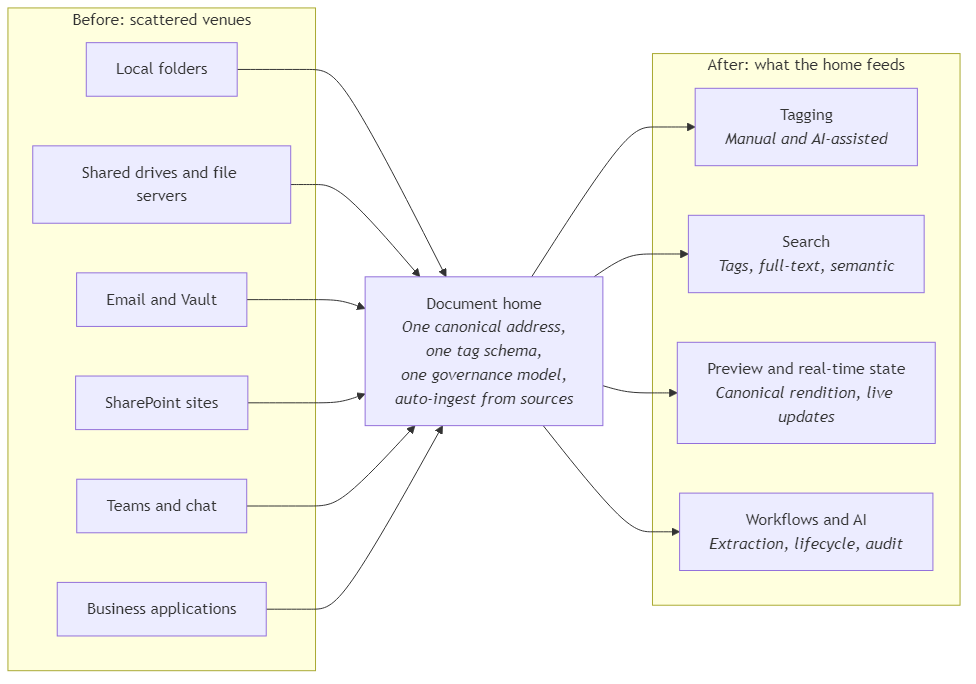
A document home is what you get when, instead of treating each symptom on its own, you create one place designed to solve them together. None of these is revolutionary on its own. The value comes from having all of them in the same place, for every document type and every team.
1. One canonical address per document
Every document resolves to a single canonical identity, and everything else (a chat message, an email, a workflow record, a citation in a RAG answer) points to that identity rather than to a copy of the file. Sharing a document means sharing a link that resolves to the live version, not forwarding a snapshot that starts drifting the moment it leaves your outbox.
This is what cancels the “X slightly different copies” problem on shared drives, the reply-all versioning dance in email, and the “I sent it to you on Teams” scramble when the channel has been archived six months later.
On updates, a proper home also cleans up after itself. Overwriting a document replaces its derived artifacts (search index entries, layout analysis, extracted fields) as part of the same operation, instead of leaving stale ones behind to be discovered a year later. Changes to metadata and tags are kept as structured history, so when someone asks ”who changed this tag, and when?”, there is an actual answer.
2. Business-aligned structure with a shared tag vocabulary
The top-level structure reflects how the organization is actually shaped (teams, workspaces, personal scope, sensitivity of the content) rather than whatever folder tree happened to grow first. Permissions follow that structure. A user’s view of the system is automatically the set of documents they are allowed to see, and nothing more. This is the point where the system stops asking users ”where does this file go?” and starts asking a more meaningful question: ”what is this document about?”.
That is what cancels the SharePoint sprawl where discovery depends on already knowing a site exists, the file-server folder tree that stopped reflecting the business two reorgs ago, and the gradual build-up of outdated permissions, where people keep access long after the project that justified it has ended.
The second half of the answer is a tag schema that is shared across document types. Contracts, invoices, reports, quality records, HR policies: all tagged from the same vocabulary (document type, product, customer, region, or whatever the organization decides matters). Tags are applied both manually and by AI-assisted tagging, so the schema fills itself in instead of depending on human discipline. A finance person filtering for a supplier and a legal person filtering for the same supplier end up looking at consistent results, because they are filtering on the same keys.
3. Search as a first-class feature, not an afterthought
One search surface, scoped to what the user is allowed to see, combining three things that most storage systems treat separately: full-text (exact terms, clause wording, product codes), semantic search (meaning, paraphrase, synonyms), and tag filters. All three work together on the same query, over every document type.
This is what cancels “search is a joke” on the file server, the Vault that treats every preview as a fresh archive retrieval, the SharePoint search that is only as good as the site you remembered to look in, and the “if you don’t remember the sender, subject, or file name, good luck” email excavation.
The harder problem search quietly solves is cross-team discovery. The contract Legal keeps, the accrual Accounting checks, and the delivery terms Operations cares about are no longer three separate lookups in three separate systems; they are three filters on the same index. That is when storage stops being a per-team artifact and starts being a shared organizational asset.
4. In-place preview and real-time state
Opening a document does not require downloading it first, saving it locally, renaming it, and then hoping you picked the right folder. Previews are generated from a canonical rendition of the file (PDF, image, or equivalent), which means the same preview surface works regardless of whether the original was Word, Excel, PowerPoint, or PDF. State changes (a new upload, a tag update, a workflow moving from one stage to the next) propagate to open sessions in real time, so two people looking at the same document are looking at the same version, not at two snapshots they opened ten minutes apart.
This is what cancels the Desktop swamp of downloaded copies, the download-rename-save ritual for email attachments, and the SharePoint sprawl where two people think they are reading the same document, but are actually looking at different copies in different sites.
5. A platform built for workflows, not just for filing
A filing cabinet gives you files. A document home gives you what happens to the files next. Storage feeds search, extraction (pulling structured fields out of a document with an auditable input and output), lifecycle state (a document moving through named stages such as draft, in-review, or approved, with each transition recorded), and a history of who did what and when. The same document can be the thing a user searches, the thing a colleague previews, and the thing a workflow extracts from, without ever being copied into a second system.
This is what cancels the business-application trap where a contract is perfectly usable inside the CRM and nowhere else, the retyping that happens when a document’s data has to land in the ERP, and the compliance question “where do all the documents of type X live, and what has happened to each of them?” that nobody currently has a single-query answer for.
A home that cannot support future AI capabilities, or capture an auditable history of what happened to a document, is just another drive with a (hopefully) nicer login screen.
6. Documents that arrive on their own
Most documents in an organization are not born in a file uploader. They are born in places like an email thread, a CRM record, an ERP transaction, or a supplier portal. A proper document home connects to those sources and pulls documents in automatically, with the right tags already applied, so the home is not a place users have to remember to upload to, but the place where documents land regardless of where they originated.
This is what cancels the “someone has to remember to carry this document over” burden in email, the chat-app pruning risk where a file silently disappears, and the business-application silo where a document born in the CRM or ERP never reaches anyone outside that system.
The same principle applies in reverse. When a document does need to live inside another system (the CRM, the ERP, a portal) because a workflow legitimately requires it there, the document home remains the source of truth, and the copy that appears elsewhere is a reference, not a new original. That is the only way to keep “one canonical address per document” honest in an organization that uses more than one system.
Reality check
A few honest trade-offs, because this is not the article where I pretend consolidation is free:
Migration is not free. Decades of scattered storage do not consolidate themselves. Pretending otherwise is how the last three attempts became PowerPoint slides about attempts.
A home still needs governance. A single place with no tag discipline, no retention policy, and no ownership model will rot in eighteen months, in exactly the way the current shared drive rotted. Tools do not replace decisions.
Adoption beats technology. If the new home is not at least as fast as ”right-click, attach to email”, nobody will use it. Measure friction, not features. If it costs your colleague one extra click compared to the old way, you have already lost half your users on day one.
Connectors are forever. Automatic ingestion is not a one-off migration; it is a permanent engineering surface. Every source system has its own auth model, rate limits, schema quirks, and the occasional silent breaking change. The benefit is enormous, but the maintenance cost is real and has to be staffed. The worst outcome is half-built connectors that nobody owns.
Conclusion
The real question every team has to ask itself (in coordination with the others) is not ”which document storage should we use?”, but ”what do we want our documents to be able to do?”. Answer that first, and you have a solid foundation for the storage decision. Answer it last, and you will keep shopping for tools that cannot fix a problem you never defined.
The technical pair for this piece is Giving your documents a proper home.
Ideas, opinions, and tone are mine. AI helped with the language.
For more articles on AI-native document management visit the pialgorithms blog.
pialgorithms | document management software | ai engineering services